Showing posts with label Kindle tips. Show all posts

Friday, March 8, 2019

Updated info on sending files to a Kindle

I've noticed that Amazon has changed some of their pages, so here are updated directions for how to email files to a Kindle. You can send an MS Word file, an ASCII text file, a PDF, or a *.mobi file to your Kindle if you first do this one-time set up procedure:
  1. Log on to Amazon and hover the cursor over Account & Lists
  2. This makes several lists appear. 
  3. About 2/3 of the way down on the far right column, click Your Content & Devices 
  4. On the Manage Your Content & Devices page, click the Preferences tab 
  5. Scroll down to Personal Document Settings and click that.
  6.  A list of your Kindle devices should appear with the email address for each shown. 
  7. Make a note of the address for the Kindle you plan to use.
  8. Next, scroll down to where it says Approved Personal Document E-mail List and add the email address you will use to send the file; if you don't add the address, then nothing will reach your Kindle via email
Now all you have to do any time you want to put a file on your Kindle is to create an email to the Kindle's email address, attach the file, and click Send. Note that if you attach a PDF it will arrive as a PDF, unless you put the word "convert" on the subject line of the email. This will convert it to reflowable text and you can then change the font size  on the Kindle, if needed. 

Important Notes: Unless the file is mobi, the file name will become the document name. Also, regardless of format, once the file is on the Kindle, it is considered a "personal document" and not a book. If you set your home screen to show only "books" you will only see those Kindle books you bought from Amazon. If you're sending a PDF, the subject line should be the the word "CONVERT," or the PDF file will end up as a PDF on the Kindle;  that is, it won't be a normal book, but rather a series of images. 

Very important note

There is no charge for emailing documents UNLESS you are using a 3G connection. Be sure you are using wifi when you email a file, to avoid per/MB charges to your account.

Addendum added February 2021

In response to Kindle-hacking, Amazon now sends an email asking you to verify that you sent the file. You have to click the blue box or the file will not be delivered. See below for an illustration.

Kindle Logo
Hi ,

We received a request to send the following document to your Kindle account:
* Drifters.docx


Click below within 48 hours to verify this request.


Verify Request

Thank you for reading with Kindle!

Wednesday, August 8, 2018

eBooks can be corrected and Kindle books often are!


Any book can have errors, but one book that's almost bound to have errors is an old, out-of-print (or even out-of-copyright) title that is published as an ebook by scanning the printed pages and then converting the resulting file into epub or Kindle format without carefully proofing every word. It might be because the pages weren't in great shape or it might be because the scanner wasn't the latest and greatest, but those kinds of books almost always have some errors. Sometimes they have many errors.

A lot of readers probably pay no attention, but in fact Kindle books are often updated after publication. This could be for reasons other than errors; the publisher might have added content, or enabled a new feature like X-Ray. But since the  Kindle interface provides a way for the user to report content errors, I'm guessing the most common reason is fixing a typo or several typos.  [Note: This only works on an actual Kindle. The Kindle app on my Android phone, my PC, and my tablet do not have this function. I don't know about the iPhone and/or iPad versions. If you know, please leave me a comment.]

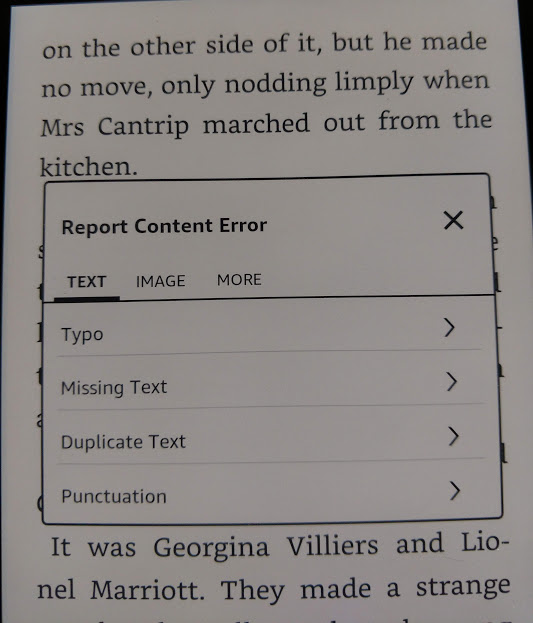
If you feel like it, you can send Amazon info about errors using the menu that pops up when you highlight text.  The example below is highly typical of the kind of errors you'll see in scanned books. "For two pins" was a common expression, but the scanner made it into "Pot two pins."


Once you tap the three dots to get the menu, you see an option to report a content error. 


Amazon now asks you to identify the error.


In this case, I tapped Typo.


This gave me a screen where I could input the correction. In a way, Amazon is making readers into proofreaders. 


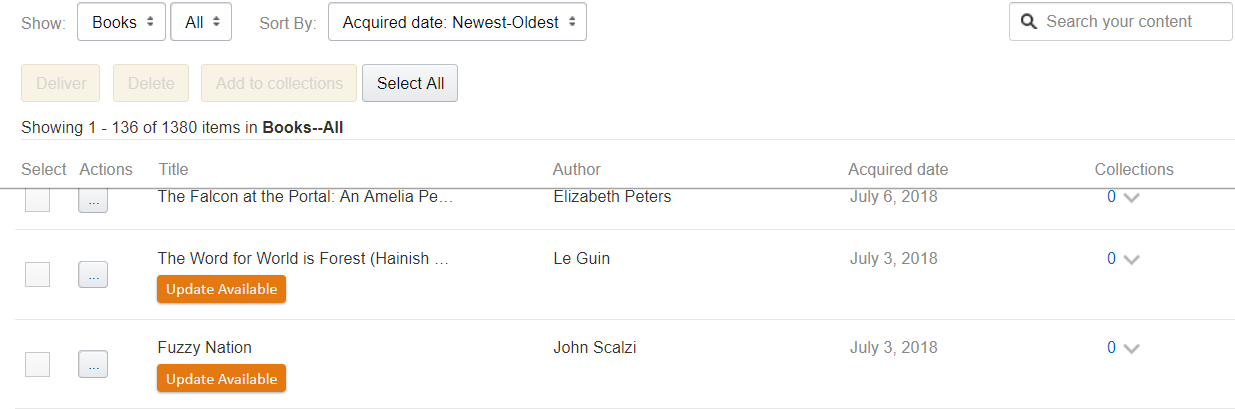
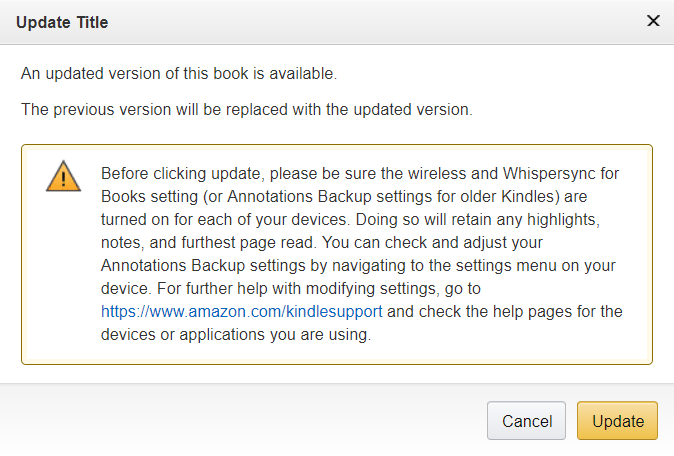
Once you click submit, you get a screen telling you the error will be submitted. But assuming that the publisher acts on these notices, how do you get a corrected file? Well, corrections and changes happen all the time, but Amazon doesn't automatically reload the book because doing so with no warning could wipe out a reader's notes and highlights and lose his place in the book. If a publisher has uploaded a corrected ebook that you bought from Amazon, that shows in your list of  Kindle books, accessible in your browser when you're on Amazon.com. The list appears under the heading  "Content and Devices"  and updates are obvious. 


If you click the update button, Amazon first sends a warning. 


And there you have it. Good luck trying that with a printed book on your shelves! 


Friday, August 18, 2017

A Kindle feature for writers

One thing my lovely Kindle Voyage doesn't do is read out loud. Older Kindle models can read aloud, though, and I keep an old Kindle Touch for just that reason. Because I'm my own production department, I sometimes make edits even after the copy editor has gone over the book. For one thing, some of her question/comments make it clear I need to re-write a sentence or even a paragrah. This means I can introduce new errors,

When I'm getting a book to the page-layout stage, I send a copy of the file to the Kindle Touch and then have the KT read the m.s. aloud to me, while I follow along in InDesign, the page-layout software I use. I find that proofing this way makes it much easier to identify mistakes. On the screen or even on paper, I can read a line like this:

"Yes," she said, "I do plan go with you,"

. . . and totally miss that the word "to" is missing! So long as the missing word is tiny, my brain just fills in whatever is left out. But when I hear that sentence read aloud, the mistake is completely obvious. In addition to errors, sometimes I realize I have used the same word too often, just from hearing it over and over. Whatever the problem, I stop the robot voice, make the correction and then go on.

Another advantage is, I get to hear how someone might pronounce any made-up words. I'm working on a new manuscript, a science fiction romance called Alien Bonds. It's a novel set on an alien world with a lot of made-up names and words. When the robot voice tries to pronounce my invented words, sometimes it's the way I would pronounce it and sometimes it's a little different. Sometimes I like it better, and sometimes I think it sounds totally wrong. But either way, it gives me information.

I assume that the reason the newer Kindles don't read aloud is that not enough Kindle owners were using that feature. It's by no means a substitute for audio books, by the way. The robot voice does not do a great job at inflection and pacing. It will recognize that a sentence ends with a question mark, and infect the proper questioning tone, but it won't pause at all before the next word. It will pause for commas and periods, just not question marks. Go figure!  Also, the robot voice has to guess whether to pronounce "read" as "reed or "red" and so on. There are a fair number of heteronyms, like bow (either a weapon or a polite action) which can make for humorous mistakes Sadly, I don't think Amazon will do any work on improving the robot voice. But they might add speakers to future Kindles if audio book sales pick up.

The robot voice is a  reasonably fast reader (you can control the pace) but it takes a lot of concentration so I work slowly. I will post a photo of the cover of Alien Bonds soon, as it's almost ready.

Thursday, June 8, 2017

Amazon has redesigned the Kindle Highlights page

Kindle readers have, from day one, had the ability to highlight text in Kindle books, and to add notations. I blogged about this in 2011, because it's a very useful feature for book reviewers. While you are reading, highlighted text appears shaded (on a Kindle Fire you can choose shading colors) and notes look like footnote references. But what makes this feature so useful is you can access these notes and highlights from your web browser, which means you can copy and paste them into a Word document or blog post or email or whatever.

Now Amazon had redesigned the web interface, and changed the URL. Here's the old look, which was accessed from https://kindle.amazon.com/your_highlights:


Usable, but pretty bland, no?

Here's the new look, accessed from https://read.amazon.com/kp/notebook:


Not only is it visually more interesting, because of the book cover from on the left, but the edit and delete notes and delete highlights buttons are easier to see. When you sync your Kindle, edits you made to the web version are copied back to your Kindle. That's pretty cool! 

Sadly, they did not change the limitation that makes this page only display notes and highlight from books bought at the Kindle store. Any other item on your Kindle, whether it's an MS Word doc containing your shopping list, or a Project Gutenberg copy of War and Peace, is treated as a "personal document." It can be highlighted and annotated on the Kindle, but those will not appear in the web interface. 

Even the look of the tab in the browser is different. New on the left, old on the right:


What I find most interesting is that Amazon has spent the time and money to enhance an existing feature, which suggests that readers are, in fact, using that feature. I can only assume they use the data they collect to plan their development efforts. If so, I wonder if the growth in audio-books will make them restore the read-aloud function, which is not available on the new e-ink models, like the Voyage and the Paperwhite.  They put some development into helping people with limited or no vision with the Voiceview feature, so I would hope they wouldn't give up on read-aloud Kindles. 

Updated: I miss the Update button! It seems slower to load to me, although that might be a function of  Chrome since it seemed to load OK with Edge. 


Friday, June 20, 2014

Yay for Kindle Paperwhite's new Page Flip feature!

Please note: This post is on the original Page Flip feature which was only available on some Kindles, not the enhanced all-apps and Kindles feature from 2016. For a review of the newer features, see this post from The Digital Reader.

--------------------------------

I own (and love) a Kindle first gen Paperwhite.  One of the things I lost switching from the Kindle Touch to the Paperwhite was the text-to-speech feature. I didn't like giving up TTS, but I knew about that ahead of time, so I was okay with it.

One thing I was not okay with was the original Paperwhite software did not support the next chapter/previous chapter function. The Touch had it; even the Kindle Keyboard (aka the Kindle 3) had it. The K3 used left and right arrow keys to move to the next or previous chapter, and the Touch used an up and down page swipe. When I got the Paperwhite, I was dismayed to find that up and down page swipes had no effect at all.


The Go To menu on the Paperwhite has a list of chapters, but it was annoying to have to invoke that menu when I used to just flip chapters with page swipes.  I had heard the new (2nd gen) Paperwhite had a feature called Page Flip, but I had never seen it.

The other day I started re-reading an old Agatha Christie, Death on the Nile, featuring Hercule Poirot. It was the first Hercule Poirot I read on the Kindle, and one thing that used to annoy me is Christie would have Poirot sling out not only exclamations but whole sentences in French. The Paperwhite will translate highlighted text, but you have to have the wireless on, or (to put it in new Kindle-speak) you have to turn airplane mode off. Usually, I turn the wireless connection on only when I am downloading a book, but because of  Hercule Poirot, I left it on for a couple of days, most of which was spent within range of my home wifi (my Kindles always have 3G, too).

Consequently, my Kindle got the new Paperwhite update! It now has several new features, most importantly, Page Flip. The (slightly fuzz) screenshot above shows what it looks like. It's even more like browsing a print book than the old function was. You invoke it with an upward swipe and it opens a secondary window on the screen.  Within that window you can jump forward and backward chapters or pages and then either go to the new location or return to where you where. It is totally cool!

Merci, Monsieur Poirot!

Monday, December 2, 2013

Kindle finally has web-based collections!

Something interesting has happened. The Kindle currently lets you create "collections" (i.e., you can label your books and see all the books with a given label) but the set of collections you create is specific to that single device. Ergo, if own a Kindle and create collections on it, and then you buy a new Kindle, you have to import all the books you want to appear in collections onto the new Kindle and then import the collections from the first Kindle. This will label all the books currently on that Kindle. But if, after you import the collections, you later send one of your older books to your newer Kindle, it will not arrive with the collection label it had on the first Kindle.  This was tedious!

However, Amazon has announced that you store collections in your Cloud Reader, too, and the Cloud collections can be imported to any Kindle.

The Cloud reader is really just a browser-based app that lets you read all your Kindle books from a PC, but since all your Kindle books (or possibly all your Kindle books from a specific date; I am not certain) go into your cloud reader, it should mean you can label the books once then import them to how every many Kindles you have.

I am very hopeful this will be as handy as it sounds! I had not yet created any collections on my Paperwhite so now I think I will create them in the Cloud and see how this works.

Addendum: Sigh. Not nearly as useful as I had hoped. You still have to create the collection on the Kindle Paperwhite, which means all the books you want to label have to be downloaded to the Paperwhite first.   If you have just bought a Kindle Paperwhite, this is a great feature. If you're on your 5th Kindle, like me, not so much.

Thursday, March 28, 2013

King of Trees got a nice review!

The book blog An Eclectic Bookshelf gave King of Trees a very nice review. Blogger/reviewer David King questioned some plot points, but overall had some nice things to say:
“This was another enjoyable story from Buxton that explores an alternate Britain that never got to embrace the industrial revolution. The plot itself had a good blend of excitement and action interspersed with politics, diplomacy and discussion. In addition, the writing was competent and flowed well which is something I have grown to expect from Buxton. . . 
Overall, I found this to be a entertaining and fun story that introduces some interesting characters who on the whole are likeable even if at times they can make some rather frustrating choices.”
David is truly an eclectic reader, and his blog has reviews for a wide variety of books. He likes to do book challenges, which involve things like reading books in many different genres or following one series (e.g., Star Trek books) in depth.  Check out his blog if you're looking for something interesting to read!

Monday, March 4, 2013

One thing that Amazon got right!

After my last post complaining about Amazon's policy change on affiliates and free Kindle books, I thought I would post on something Amazon got right.

One of the features that almost all ebook vendors offer is the free sample. You can download the first chunk of most books (the size varies, but it's usually at least the first chapter) and read it for free, to see if you want to buy the book. If you ask me (or even if you don't!), I think this is the main reason self-published authors have any chance at all.  It's also a benefit ebooks have over print books; in a bookstore, you can browse and begin reading, but you have to stay in the bookstore to make your decision.

After you download a free sample to your Kindle and then read it, when you get to the end of the sample, there are links to buy the book or to see it in the Kindle store.  Previously, when you bought a book that way, the book downloaded to your Kindle, but when you opened it, you were at the beginning of the book. To get back to where you were, you had to note the location number at the end of the sample, and then use the "Go to" menu to get to that point in the full book. It was very cumbersome, especially if you goofed and deleted the sample before you got back to reading the book, because then you didn't have a marker of where to go.

Now, when I use the buy link at the end of the buy sample, it not only downloads the book, it deletes the sample for me, and sets my "place" in the book at right where the sample ended.  When I open the book for the first time, I'm right where I stopped reading in the sample.  Exactly the behavior I would have asked for if they has asked me!  My only complaint would be, why didn't it do this to begin with?

Just to highlight how fast technology is changing, here's a photo of a panel on ereaders that I was on at the Baltimore Book Festival in 2011. Back then the way samples were handled after you bough the book would have been one of my peeves about the Kindle, but now it works great!


I don't know when they added having a button that says "See this book in the Kindle store" at the end of the free sample (as well as a buy button), but I like that, too, because I don't always remember how much the books costs. I'd be interested in knowing if all Kindles have these new features, or if the programming is unique to the Paperwhite. If anyone knows, please post a comment!


Sunday, February 24, 2013

What she said

I don't often write posts that just refer to other posts, but over on the Teleread blog, they are running an excellent series by Juli Monroe on how to use Calibre.  Teleread is a great site to follow for info on what's happening in the world of digital publishing and e-reading. It's focused more on the technology of readers and tablets than on what's being published. Unlike the MobileReads site, which is a very useful forum for users of all types of ereaders to ask questions, Teleread is generally more news-based, and posts stories and opinion pieces about new developments and new technology.


Sometimes, though, Teleread will run how-to sorts of posts, and this series about Calibre is an excellent example of that.  I use Calibre to convert my own and other writers' manuscripts to Kindle format, so I can read and proof them on my Kindle (note: I don't currently rely on Calibre for the version I send to Amazon, because it doesn't offer the kind of stylistic options I'm looking for, but I might do that one day).  However, a lot of folks use Calibre in other ways, to manage their ebook collection. It has a lot of features I don't use, which is one reason I'm recommending this series on Teleread.

The first post in the series covers getting started with the software. Calibre is available for free, but remember the creator of it relies on donations, so do give some money if you use it and like it. Upgrades are frequent and also free. The second post is about using Calibre to create or edit metadata (author, title, ISBN, genre, etc) for an ebook, and the third is on using Calibre to load ebooks onto your ereader. If you have a lot of Project Gutenberg books on your PC, for example, Calibre offers a fast and easy way to put them onto your Kindle or other ereader in a bulk load sort of way. This relies on using the USB cable, not the email delivery I described in an earlier post.

From the links at the top of the first post, it looks like the plan is for a total of 10 posts, but as of today, there were only three.  I'll be watching for the next one!

Addendum: the next one just arrived! The fourth post is on using Calibre as a content server for ebook management.

Sunday, February 17, 2013

More on putting non-Amazon books on your Kindle

I belong to a critique group, also known as a writers' group. Basically, when one of us needs feedback, we submit a story or novel chunk or even a whole novel to the group. We have more or less monthly meetings and present our critiques orally and in writing. If you read the dedication to King of Trees, you will see that I dedicated that book to my writers' group, because it was one time when their critiques radically changed the book I had given them to read.

One reason I have stayed with the group for over a decade is that they are very flexible. Some writers prefer to have their novels critiqued as they write, and others (me included) prefer to submit an entire finished work. The group is amenable either way, so long as they get two full months to read any novel-length work.

A sign of the growing digital age is that a significant percentage of my writing group now own an ereader (mostly but not entirely Kindles or Kindle Fires) and actually prefer to get an electronic copy of the manuscript (m.s.) rather than a print copy. This is great for the writer, as it saves both time and  the cost of toner and paper.  It also highlights the features of the Kindle that make it useful for this exercise:
  • You can easily send documents to it
  • You can highlight and make notes right in the m.s.
  • It's actually easier to spot typos when the work looks like a book
  • With most Kindles, you can have the m.s. read aloud if you like (not true for the Paperwhite or the Kindle 4, the bare bones Kindle)
  • No need to carry around a sheaf of papers; you can read the m.s. anywhere if you have your Kindle handy! 
But as the early adopter in the group, I find that I end up giving advice about the best way to put the m.s. onto everyone's Kindles. I offer two pieces of advice when it's a novel that's being sent. First, save the MS Word file as RTF and then convert it to mobi format (the format the Kindle is based on) with Calibre, rather than relying on Amazon's Word conversion, which will give you readable text, but often crappy formatting, like weirdly indented paragraphs. Second, use the email delivery feature to put the file on your Kindle instead of using a the USB cable, as that way it will go into your Kindle archive (assuming you have enabled that feature).

Emailing documents to the Kindle is dead simple, once you do the initial setup. There are two easy steps you have to do only once. Both can be done from the "Personal Documents Settings" page. Note that Amazon calls everything you put on your Kindle yourself (as opposed to buying from the Kindle store) a Personal Document, whether its's a Project Gutenberg copy of War and Peace or this week's shopping list.  To get to this useful page, you have to drill down through:
  1. Your Amazon page (click the link you see when you're logged on and shopping)
  2. Manage Your Kindle page (select from the initial account pull down, or from the link you see once you get to your account page) 
  3. Personal Documents Settings page (click the link in the left column of the Manage Your Kindle page)

Once you are on the Personal Documents Settings page, you just need to do these two steps:

Find out your Kindle's email address
Every Kindle, Kindle Fire, and some Kindle apps have both a name and an email address. Amazon assigns default ones, but you can edit them, if you like.  On the Personal Documents Settings page, look under the first section Send-to-Kindle E-Mail Settings to see the name (which appears when you buy a Kindle book) and the email (which you need to know to send to the Kindle). To change either, click Edit on the right hand side of that line.  Whether you change it or not, make a note of the Kindle's email address.

White list your own email address
To prevent spam from ever reaching your Kindle, Amazon requires you to explicitly authorize ("white list") any email account that can send documents to your Kindle. You can add in as many addresses as you like, but you have to be using one of them when you send a file, or it won't go to your Kindle.

Also note on this page there is a place to create a limit for how much you want to pay per file for any documents sent. This only an issue if you use a 3G connection to send a document. Using wifi to send documents does not accrue any charges.

Now, to send a document to the Kindle, it just has to be in an approved format (the file extension should be mobi, azw, prc, html, txt, pdf, doc, or docx).  Address the message to your Kindle, attach the file, and send. The only caveats are:
  • The file you send will only show on your home screen if the Kindle is set to show "All" or "Personal Documents." If you select "Books" as the filter, the file you sent will not be listed.
  • PDF files will not be converted unless you put the word "convert" (and only that word) in the subject line of the email. Files sent as PDFs will be readable, but you won't be able to change the font size.
  • Any notes and highlights you create won't appear in your My Highlights page, which they do do for books you buy from Amazon. (This is something I really wish Amazon would add!) They will be accessible on your Kindle via the View Notes and Marks menu option you see when you have the book open and pull up the menu, but not on the web.
  • If the file is a book in azw, prc or mobi, with metadata properly identified, the book will have the proper title and author on your home screen. If it's just a document, it will have the filename as the title and your email address as the author.
That's the skinny on sending books to your Kindle. Be sure to check out Project Gutenberg if you're interested in free classics beyond those offered in the Kindle store.  And of course, I have a book free in the Kindle store if you want an even easier delivery.

Here's my earlier post on this topic. Any questions, use the comments section!


Friday, February 1, 2013

A Kindle tip for multi-Kindle families

My husband and I have several Kindles and Kindle apps between us. I have a Kindle Paperwhite that's my primary reading device. I also have a Kindle Keyboard that I keep mostly for proofing using the read-aloud (text-to-speech) feature. My husband has a Kindle Touch (it used to be my Kindle Touch), and a Kindle app on his iPad (great for cookbooks and other books with color illustrations). I also have the Kindle app on my Android phone, although I don't use it much because I generally carry my Kindle in my purse.

That's five devices! When you buy a book from the Kindle store, there's a default device listed under the "Deliver to" link. If I don't want the default device, I need to click the arrow and select which device to send the book to. I can't tell you how many times I sent a book to the wrong Kindle! Admittedly, it's hardly a major problem, but still, it can be annoying, especially if you don't realize you've done it, and then the book isn't there when you fire up your Kindle. My husband's Kindle kept showing up as the default, and I bought a lot more books than he did, so it was frustrating to keep doing that.

I once emailed Amazon to ask how I could reset the default device, and the customer service person told me there wasn't a way to make my Kindle the default. I don't know if that person just didn't know or didn't understand my question, but actually there is a very simple way to set which Kindle shows up at the top of the list because is displayed alphabetically! All you have to do is to change the Kindle's name. Someone pointed this out in a user forum; I wish I could remember their name to say thanks.

To reset your Kindle's name (or Kindle app's name), just go to the Manage Your Devices link on your Amazon account page (left column).


Once you click the link, you go to a page where all your Kindles and apps are listed. The first column is the Kindle name, which is something you can edit as often as needed, just by clicking the Edit link right after the name. To make a Kindle or Kindle app appear first, just be sure it's first alphabetically. I simple added an “a” in front of my name, but you could also rename your Kindle “Amabel” or “Aaron,” or whatever you like.

There you go! That's all it took and my frustration was gone.

Happy reading!

Saturday, October 27, 2012

My review of the Kindle Paperwhite

I've had the Paperwhite for several days now. I got the 3G model, but of course the first thing I did was connect to my home network. It was pretty easy to set it up, and the bunch of books I had already sent to the Paperwhite downloaded quickly.  I've read on it for a fair bit now, and I'm ready to say what I like and what I don't.

The Good

  • The screen: It's fantastic! It really is a noticeably better level of contrast, blacker letters on a whiter page. Black and white photos and drawings look especially crisp and nice. The Paperwhite screen is also more responsive, because it's capacitive instead of infrared, I find that the number of times I advance a page without meaning to is much less than with the Touch. 
  • The built-in light: It provides excellent, easy to control, pretty even lighting, and it doesn't seem to drain the battery, either.
  • The feel: The Paperwhite is so small and light! I am happy I got a slip case so I can easily take the Kindle out of it and read with just the device in my hand. It makes one-handed reading easier.
  • The screen savers: The screen savers (unless you have a KSO* version) are the same as for the Touch, and I was happy not to lose them.
  • The Home screen:  The Paperwhite has the option of displaying book covers instead of just titles and authors. As long as it's an option, I'm OK with that. It's nice to have when you want it, but I won't always want to waste that much screen real estate on book covers.  

The Bad 

  • No text-to-speech (TTS) or speakers or a headphone jack. Frowny face over that one.
  • Ads on the home screen! I did not get a KSO version, but when I have the home screen set to display book covers, it will list a row of books on my Kindle, and then a row of "Editor's Picks," a.k.a. books or Kindle Singles that Amazon wants me to buy. In other words, I'm seeing freakin' ads! Cut it out, Amazon! They might be great books, but they're still books I don't own and you want to sell me. When I want to shop, I'll shop. Luckily, the ads don't show after page 1, or if you're using List mode. Addendum: Amazon now allows you to turn this off! Yay!
  • No Home button. The Touch had one physical button (beside the off switch) and that was the button on the bottom of the bezel that you could press from anywhere and it would take you to your Home screen. Now I have to get the menu, and then press the Home icon.  It's not terrible, but it's not as easy.
  • No page swipe up and down for next chapter/last chapter. Why the hell did they take this feature away? It was a wonderful way to browse an ebook. I don't care that all the chapter headings are now on the Go To menu, why can't I browse without getting a menu every time? 

The Undecided

  • Collections: I haven't imported my collections to this Kindle yet, because I don't have all the books I want copied over yet. Kindle collections are device-specific; if I import my Kindle Touch collections now, it will apply those labels to the books currently on the Paperwhite, but if I send over more books from my Archive (now called The Cloud), then they won't keep the labels they had on the Touch on them when they arrive on the Paperwhite.  Once I get everything set up, I will import my collections and see how it goes. If collections are raddically differnt on the Paperwhite than they are on the Touch, I might do a post on just collections. 
  • The timer: The Paperwhite alerts you to how much longer it will take you to finish reading a chapter and even how long for he book as a whole. I haven't decided yet it that's annoying or useful. 
  • Airplane mode: Having the wireless off is now referred to as Airplane mode. You even get a little icon of an airplane on the status bar to show you airplane mode is on (and ergo, wireless is off). Maybe it's to encourage the FAA to let people keep their Kindles on during take-off; otherwise, I don't get why they changed the wording of a feature the Kindle has had since Day 1. they also moved the function to the settings menu, so that's an extra step as well as a weird name.

All in all, I love my new Paperwhite. I have had the original Kindle, the Kindle 2, the Kindle 3 (now known as the Kindle Keyboard), and the Kindle Touch. Each new device has offered improvements, but this is the first time when it has felt like there really is not that much to improve, at least in the hardware (except for TTS).

If I were posting this on Amazon, I would have to give it five out of five stars.

* KSO is Kindle with special offers, a cheaper version that shows ads as screen savers and on the home screen.


Friday, June 22, 2012

Borrowing books from the Kindle Owners Lending Library

Amazon has some interesting benefits for Amazon Prime members.  Amazon Prime is a membership program that costs $79 a year. The most-often used benefit is that you get free 2-day shipping on physical items you order from Amazon—print books, DVDs, whatever—so long as it's sent to you by Amazon and not a retail partner.   There are also movies and TV shows you can watch online for free, and there is the Kindle Owners Lending Library (KLL or KOLL).

The KOLL is more limited because it can only be used by Prime members who also own Kindles (either e-ink Kindles or a Kindle Fire). I think one reason a lot of Kindle owners don't know about KOLL is that not that many of them have Prime; when your books are digital, you don't care about 2-day shipping. Also, borrowing books is one of the few functions that can't be done from the web; you must initiate borrowing from the Kindle itself.

If you are browsing or searching the Kindle store and you see a prime symbol  like the one above, that tells you that the book can be borrowed for free by Kindle-owning Prime members. To borrow the book, you will have to find it in the Kindle store from the Kindle itself.

To browse the KOLL (assuming you qualify)  do the following steps:
  1. Turn on the wireless on your Kindle
  2. Go to the Kindle storefront
  3. Select the Browse — All Categories option
  4. That brings up a pick-list; select the last item, Kindle Lending Library
  5. Once you are in the Kindle Lending Library, you can browse by genre and then sort by what's new or what's popular; be prepared for a huge amount of porn if you don't pick a specific genre
  6. You can also search as usual using the search bar and specifying an author or title.
Once you find the book you want, if it's in the KOLL there should be a Borrow for Free option next to the Buy button. Select that, and the book will then be downloaded to your Kindle.  The limitations are that you can only borrow one book per month and you can only borrow books that are permitted to be in the KOLL by the publishers; however, you can take as long as you need the read the book. All the Happy Potter books are included, as well as any book that participates in the Kindle Select program.  Also, Amazon will keep any notes and highlighting, so if you buy a book after borrowing it, you won't lose your notes.

Of my books, only Shades of Empire and Where Magic Rules are in the KOLL. If you're eligible, check them out (literally!).  Did I mention Amazon pays the author a fee every time the book is borrowed?

Note:  As of March, 2013, only my latest book King of Trees is in the KOLL. I don't leave books in the KDP Select program forever because to do that, I would have to not sell them anywhere else. 

Thursday, December 8, 2011

Why an ereader is a great tool for a book reveiwer

I've started reading Death Comes to Pemberley, and I'm enjoying it so far, but one thing I had decided before I started reading was that I would most likely post a review of it. With that in mind, I have been using the Kindle's annotation and highlight features, two very handy things if you plan to review a book, and with the Kindle Touch, very easy to use.

To create an annotation, you simply press your finger to the screen where you want to annotate and hold it there for a second or two. You will get a menu showing the definition of the word you touched and menu buttons to create a highlight or a note. Once you press "Note," the on-screen keyboard appears and you can type whatever text you like and then save it.  In the book it appears rather like a footnote, but with the number in a box

For a highlight, unless you want to highlight a single word, you press the screen on the first word and after half a second, you move your finger to the right and then down. When you reach the end of the area you want to highlight, remove your finger from the screen, it will ask if you wanted to create a note or a highlight (or to share via social networking).

Notes and highlights can be read and reviewed from within the book itself using the Kindle's menu, but for writing a review, one reason they are a real boon is that they are also available on the web as part of your Amazon account.  You go to the special Kindle area of Amazon, login to your account,  and click "Your Highlights" to see them, in chronological order, most recent book first.  From there you can copy and paste directly into the review. It's a wonderful function!

I know a lot of other ereaders and ereader apps offer annotation and highlighting (iBooks even does different colors), but I am not clear on whether they offer web access to just the highlights and annotations. If anyone out there knows, feel free to chime !

Saturday, December 3, 2011

Did you know Kindles can be rebooted?

I had to do a house call for some Kindle support yesterday. All my friends know I go way back with the Kindle (the Kindle Touch is my fourth Kindle; I have had every model except the DX and the new bare-bones Kindle, which some folks are calling the Kindle 4) and they often ask me for advice on what to buy and how to do things on the Kindle.

Anyway, my friend had had her Kindle 3 for almost two years and had had no problems, but she said suddenly it wasn't charging. She was about to go on a bus trip, so she had plugged it in to be sure it was fully charged, and the little yellow charging light did not come on. When I went over there, I discovered the Kindle was in sleep mode, and would not come out of sleep mode. I plugged my own charger in to be sure my friend's charger wasn't the problem, and still no yellow light.

I suggested rebooting it, and discovered she didn't know Kindles could be rebooted. eInk ereaders are very easy to use, and pretty much single purpose-built— reading— but they are basically very simple computers with operating systems. Kindles run under a Linux operating system, and truly geeky types have even hacked them to do other computing tasks not sanctioned by Amazon.

The Kindle 1 was rebooted by sticking the end of paper clip (or something similar) into a small hole on the back, but ever since the Kindle 2, this function has been accomplished via the power switch. On the K2 and the K3, you slide the power switch to one side, but on the K4 and the KT, you press it. To reboot, you simply slide or press and hold the power switch in place for about 15 seconds, and then release it. It can take a few seconds to see a response, but the screen will go blank and then you'll see the entire screen become the Kindle logo (someone reading under a tree) with a progress bar that advances as the reboot progresses.

In my friend's case, once her Kindle 3 was rebooted successively, the yellow light came on, and a minute later it turned green, which told me that the device had in fact, been recharging all along, but because it was hung, the light had not come on.

My friend was good to go and all set for her bus trip.

Saturday, November 26, 2011

Kindle connectivity: 3G or not 3G, that is the question!

Wireless delivery is one of the two features that made the Kindle take off. The Sony Reader was first to the marketplace with some very nice e-ink hardware, but you had to a) download the books to the PC, b) connect the Reader to the computer with a cable, and then c) copy the books to the Reader. With a Kindle, you didn't even have to own a computer, let alone do a, b, and c. Add in Amazon's ebook selection and you have the secret of the Kindle's early success.

As a long time Kindle owner, I often get asked by folks looking to buy a Kindle or a Nook, "Do I really need the 3G option or can I get by with just wifi?" I got my brand new Kindle Touch with 3G because once you have had it, there's no going back. I compare it to an ice maker; once you have one, you're not filling those little trays yourself. But wifi actually offers superior speed. "Book in 60 seconds?" With wifi, it's more like 6 seconds. Wifi use also drains the battery less than 3G.

The problem with wifi is, it's not everywhere. Or in some cases, it's there but it won't work. My Kindle can connect to the wide open network maintained by the retail establishments near where I work, but it won't connect to the secure network provided by the company I work for. I've also had problems with not being able to connect to some hotel networks, even after trying every setting on the security-type options. Fortunately, I had 3G to fall back on.

Questions for potential ereader buyers:

  1. Do you have wifi at home? If not, I would go with the 3G right there. What's the use of having an ereader if you can't download the next book in the series while sitting in bed at midnight?
  2. How geeky are you?  If you know enough to recognize that WEP and WPA are types of wifi security, you will probably be okay with tinkering with the Kindle's wifi settings and can get by without 3G.
  3. How much do you travel?  If you're buying a Kindle to save packing books, the 3G is a safer bet.  If you don't travel often, and plan to read mostly at home with your own wifi available, you will probably be okay without 3G.

An important note: With the Kindle Keyboard, you can use 3G to browse the web. It is clunky as all get out, but you can do it.  With the Kindle Touch, using 3G to connect to the web allows only limited access; you can shop at Amazon, including downloading books you buy from them, and read Wikipedia, but you can't browse the wide-open web. That's because Amazon doesn't charge for 3G access, except when you use it to email documents (including non-Amazon ebooks) to your Kindle.  In those instances, you pay a per megabyte fee (I believe its 15¢/MB). Otherwise, the only charge for 3G is the initial increased cost for the device itself. I'm sure that since the touch screen makes browsing the web so much easier, Amazon doesn't want to rack up a huge bill for 3G use that doesn't get them anything.  If you want an ereader that's also a 3G web browser, you will have to settle for a Kindle Keyboard.

Also note that the new Kindle Fire does not come with 3G at all, so if you opt for the Fire, you forgo the 3G as well as the e-ink.

It may seem confusing, but really it's great to have options. eReaders are like pantyhose; one size does not fit all!

Saturday, July 16, 2011

Kindle tips: putting non-Amazon ebooks on your Kindle

I was showing a friend how to put non-Amazon books on her Kindle, and she said to me, “You should teach a class!” Well, I don't think I need to do that; but just in case other folks out there don't know about it, I wanted to pass on this tip. Some people think if you buy a Kindle, you can only buy books from Amazon. That's not actually true, or perhaps I should say, it's only partly true.

Books from iBooks, Sony, or Nook ebookstores generally have proprietary DRM (digital rights management software) that allows the book to be read only on a specific device or app that is linked to that bookstore. Books from those vendors are also in ePub format (a standard format, but not supported by Kindles), as are many of the free books on the web. A great source for free, non-DRM, out-of-copyright books is Project Gutenburg, which offers ebooks in different formats. If an epub book doesn't have DRM, you can easily convert it to the Kindle format using Calibre, free ebook conversion and management software (they do rely on donations, so consider making one if you use it and like it). Calibre can convert ebooks to and from Mobi (Kindle), epub, RTF, PDF and other formats.

There are a few ebookstores that sell ebooks in Kindle format but without DRM, and these books are perfectly compatible with any Kindle. Two excellent examples are Smashwords and O'Reilly. Smashwords is an enormous ebookstore that sells nonfiction and fiction ebooks in pretty much every format, even PDF and plain text. O'Reilly sells technical books, and they also offer multiple formats, and a daily ebook deal. These vendors generally offer books in Kindle format, so you don't have to convert them. With Smashwords, you will need to download the file to your computer and then move it to your Kindle. O'Reilly offers an email option for Method 2, described below.

Moving files to a Kindle: Method 1
One way to do this it to download the book, and then connect the Kindle to the PC/Mac with the USB cable, and then drag the file into the Documents folder on the Kindle. The file extension should be either azw, mobi., or prc for the file to appear as a Kindle book when you open it on the Kindle. This method does not require wireless access and doesn't incur any charge from Amazon.

Moving files to a Kindle: Method 2
The second method is simpler but does require a one-time set-up step; you can email documents to your Kindle. The first thing to do is to go to the Manage My Kindle page, accessible from your Amazon My Account page, and whitelist your email address, and any other email address that you want to be ale to send books to your Kindle.  Every Kindle has its own email address, and to prevent it from getting spam, only email from addresses you have authorized will be accepted by your Kindle. So, first find your Kindle address by clicking Manage Your Devices on your Kindle page, left column, and make a note of it.

Next, whitelist the email address(es) you will use to send documents to your Kindle by clicking  Personal Document Settings and using the link for add a new approved email address.  If you buy books from O'Reilly or  any other vendor that offers non-DRMed Kindle format ebooks and email delivery, you can add their email addresses and send books you buy from those vendors directly from their website without downloading first.

Once you have done that set-up step, you can send any file with a mobi or prc extension to your Kindle by creating an email, addressing it to your Kindle, and then attaching the file. You can also send personal documents (plain text or MS Word files) and PDFs using the same email method. If you have a PDF you want Amazon to convert to a Kindle book (don't expect it to be perfect), you must put the word ‘convert’ (and only that word) in the subject line of the message; if you don't, Amazon will load the book to your Kindle as a PDF and you won't be able to change the font size.

Once caveat to the email delivery is that if you use a 3G connection to deliver the book, Amazon will charge you 15¢ per MB for each file. There is no charge if you use wifi to send the books or other documents, regardless of file size.

Free Books!
One reason I want to be sure Kindle owners know about this feature is that it is much easier to make a book free in Smashwords than on Kindle. Even when Amazon price-matches (which they usually do only if they notice the book is free on Barnes & Noble), they only make the book free in the US Kindle store (as they did with The Sixth Discipline). Folks who are not in the US who want to take advantage of a book promotion can get it in Kindle format from Smashwords and send it to their Kindles. Just be aware that Amazon's tools, like the home screen display and the Manage Your Kindle settings, will treat any book you didn't buy from Amazon as a ‘personal document’ rather than as a book. If you filter your home page to show "Books only," ebooks you got from non-Amazon sources will not show up.

Note: Here's a more recent post on the same topic. And the most recent post on emailing to your Kindle! (Amazon changed some screens)