Showing posts with label print on demand. Show all posts

Tuesday, March 19, 2019

KDP Print versus Nook Press

One of my most popular blog posts is from 2016, when I compared using Amazon's CreateSpace to using Barnes & Noble's Nook Press Print. CreateSpace is gone now, replaced by KDP Print, but I recently published Tribes as a paperback on both KDP Print and on Nook Press, so below is a comparison of print publishing via Amazon and Barnes and Noble using the versions of those platforms in use today.

Both platforms have fully integrated print and ebook publication. Each title appears once in the author's list of Projects (B&N) or on the Bookshelf  (KDP), with the ability to add it in a second format and neither one makes you create the ebook first.. Basically, most of the features/options below apply to both ebook and print formats.

Pre-order

Nook Press offered the choice of putting the book on sale now or using pre-order but it didn't give me a chance to say when it would be available. After processing finished, I saw this message on my projects page.

  • Your pre-order print book Tribes has a publication date of March 26, 2019. You must upload your final files by March 11, 2019. If you’re unable to do so, you must push your publication date or your book will go off sale.

And that was that! So pre-ordering was available on B&N but without a lot of options.

With KDP, pre-ordering is an option only for Kindle books. It does let you set the date, though. In fact, the pre-order option is the only way you can launch the book with the X-Ray feature enabled from the start. 

Categories:

KDP only allows two categories but it was very easy to add both.

Nook says it allows 5 categories but after I added the first, I could not figure out how to add more.  Also, selecting a category required me to specify three levels: category, subcategory, and sub-subcategory.


ISBN:

Both KDP Print and Nook Press provide free ISBNs for print books, but if you use their ISBN, it cannot be used anywhere else. I always buy my own ISBNs and register them to my imprint, Cracked Mirror Press. I want the paperback to have one single ISBN.

In the past, B&N has rejected the ISBN I used on Amazon KDP, but this time  I had not yet clicked publish on Amazon when I set up the Nook version. Also, I didn't select "expanded distribution" on KDP, which causes Amazon to make the book available on other online bookstores such as Barnes & Noble, Consequently, I was able to use my own ISBN for the Nook Press version.

Formats:

Both platforms offer paperback, but Nook Press can also do hardback. I have no idea of the requirements because I have never used that option, but it is there.

One advantage B&N has is the "Buy online, pick up in store" option that shows up on the product page. It's only really an advantage if a reader lives near a store with an Espresso Book Machine to print the book, but it's there.

Pricing:

Amazon stated my cost to print (which is the cost of author copies) as $4.44 and B&N estimated it as $5.00. This does not cover shipping, of course.

Proof copies:

Both platforms allow you to order a proof copy; the one from KDP had a "Not for resale" stripe on the front cover, but the Nook one did not.

Linking the print and ebook versions:

Both platforms allow you to create a new version of an existing title in a new format just by clicking a button on the entry for the existing format. I had, in fact, pulled the Nook Press version of Tribes from sale before I published the Nook press paperback, but it was still in the system (it was, in fact, still for sale, because before I published it to B&N directly, I made it available to B&N via Smashwords; this was years ago, well before I published it directly on Nook Press, I had quite a time getting that version pulled from sale). .Anyway, B&N automatically added the Nook book description and other details about the ebook when I clicked the link to create the print book .On the B&N product page, it showed one entry for Tribes but with two formats. So, linking product pages was no problem on the Nook end.

On Amazon, for some reason even though I created the paperback by clicking the "Create paperback" button on the Kindle version's entry, it did not link the product pages. If you searched Amazon for the title and author without specifying Kindle, it showed both formats but with two entries, like this:
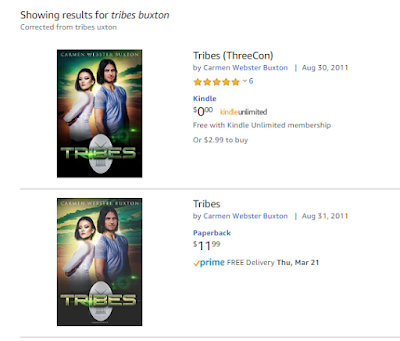


If you limited the search to the Kindle store, you would see only the Kindle version, with no indication a paperback exists. Likewise, clicking one entry brings up that product page with no link to the other version. Amazon claims linking will happen automatically within 72 hours, but I have always had to ask them to link the books, which is what I had to do for Tribes. It didn't take them long and now it looks like this:


Conclusion

In terms of ease of use, the two platforms are actually pretty similar. Also of note is that the PDFs for the interior and the cover worked fine on both platforms. Of course, in both cases, I had selected white paper instead of cream, which I suspect is why the covers worked for both.


Sunday, May 15, 2016

Conquering InDesign

Considering that my husband calls me a “Kindle evangelist,” I have spent a lot of time lately working on printing books. I just finished a semester-long class at my local community college. The course title was Desktop Publishing but really it was How to Use InDesign.

InDesign is an Adobe product that will handle page layout, and also allow you to export an ePub (ebook) file,. As I found out from the course, it will also export simple Adobe Flash files, for say, a series of click-through screens. And, it can export interactive PDF, if I ever need to do that. It's a very powerful but complex product, and I had had no luck in learning it on my own, which is my usual method with new software. InDesign has an incredible number of functions and as a result, the menus often have long list of unrelated options. Also, it use “tools.” That is, you change the function of what the mouse cursor does by picking a tool from a list.

The basic function is selecting things, but the software doesn't stop you from using menus if you have a tool other than the Select tool in use. This can get you in trouble! For example, I discovered that if you're using the Type tool when you place (paste in) a graphic file, InDesign creates that image as an anchored graphic that won't budge, no matter how much text you add in front of it,  Who knew? I'm sure it's that way to provide a shortcut for people who know what they are doing with InDesign. Until recently, that was not me.


As you can see by the above image of a full print cover, I started small, with my only novella, Where Magic Rules. Because it's so short, I didn't even try to put text on the spine, but I'll do that with the next book.  Once I have WMR ready to go, it will join Saronna's Gift as a paperback for sale on Amazon.

And of course, InDesign does the page layout beautifully. You can quickly and easily impose proper book format, with the first page of a chapter having its own unique layout. I love it!

Sunday, April 10, 2016

The self-publishing process: Should I do print?

If you've made the decision to self-publish, the next think you need to decide is whether to publish print books or ebooks or both.

POD

To self-publish in print, almost the only viable option, unless you are rich enough to invest the money needed to print several thousand copies of your book, is to use a POD service. POD stands for print on demand, a process that takes advantage of new technology that melds a high speed printer/copier machine with a book binder. So far as I know, the only commercially available one is called the Espresso Book Machine. Some bookstores have invested in these machines, but they are expensive, so they are not generally affordable for a small business. But several online companies are out there, including Lulu and CreateSpace (from Amazon) and Barnes and Noble, that provide a way to print and sell your book using their POD machines and their websites.


However, even the POD process requires that you format the manuscript properly, and create a PDF of the book interior that looks like a typeset book, with all the correct information on the title page (front and back) and with proper headers and footers, including page numbers. That is much harder than it sounds! Some people use MS Word templates from companies like Joel Friedlander's Book Design Templates. Other use desktop publishing software, like Adobe InDesign (which can also produce an epub file for the ebook version). But InDesign is complex and not free, so that's a real investment of time and money.  There are commercial services that will format print books, just as there are for ebooks, but all of them have the same limitation: correction workflow. If you give a commercial services a word processing file, and they give you the a PDF to publish from, how do you correct that if you find an error later? Generally, unless you can edit PDFs, you have to ask them to make the correction for you.

Obviously, everything should be proofed carefully before you hand over the m.s., but it's difficult to be sure you got every single tiny typo.  Correction workflow should be factored into your decision on how to produce the PDF.

Cover

You will need a full-color PDF of the entire cover (front, back, and spine), not just a front cover image, like you do for an ebook. The cover is even more important for print than for ebooks, so you will need to be sure it looks good. There are tons of graphic artists who will work for reasonable rates, but be sure you are dealing with a reputable one before you give them your money.  Most of my covers were done by relatives with graphic design experience, but I have also used Nessgrahica. They are based in Croatia, so you would need to send the payment via Western Union, which you can do online.

Pricing

The per copy costs involved in producing a print book mean that you can't price it as competitively as you can an ebook. Amazon will let you set the price on a Kindle book as low as 99¢, but because they have to pay for paper and ink, they will not let you price a CreateSpace POD book at a loss; generally, a POD book will cost about the same as a commercially-published trade paperback. This is a significant drawback if you're starting out. One reason self-published ebooks sell as well as they do is that they are so much cheaper than ebooks from traditional publishers, who price them high to protect hardcover sales.

Selling

Another limitation is that POD books are not generally found in bookstores,. Even the B&N POD books are only at  few B&N stores that have Espresso machines. This means online sales are your only retail outlet, unless you want to go around to bookstores and persuade the owners to carry your books on a consignment basis. Some people do this successfully, others not. Some authors carry extra copies of their books to conventions and sell them to people they meet. You need to decide what you're willing to do to sell your books.

The Payoff

Quite frankly, most self-published titles don't sell well in print unless they are by an author who was already well established before the self-published titles came out. However, even if you don't sell that many copies, having a print version of your book is an advantage. You can give away free copies as promotions and (hopefully) get reviews, and if you make contacts at conventions or readings, you have something available for those folks who just don't want ebooks. And you can hold book signings!

n.b. Updated 9/23/16

Saturday, May 31, 2014

Self-publishing in print: Biting the technology bullet

From Wikimedia Commons: by Daniel Maclise_-Caxton Showing the First Specimen of His Printing to King Edward IV at the Almonry, Westminster


I recently (as in yesterday!) retired from a legal and regulatory publishing company where I worked in systems support. I also recently attended Balticon, where I attended panels on self-publishing.

The thing about self-publishing is, the author is the "publisher" but not generally the distributor. He or she decides on the content of the book, but rarely does he sell it directly to readers. For self-publishing in ebook form, there are many places on the web that an author can go to to upload their book for sale to the public. Amazon, Barnes & Noble, Kobo, Smashwords, and iBooks all have platforms that allow an author (or someone with rights to publish) to create an account, upload a file, and start selling ebooks. I have used Amazon KDP, B&N Nook Press, and Smashwords, and they were all pretty easy. Smashwords also pushes the book out to the other other retailers, as most of their authors sell more books on those platforms than on Smashwords itself. I have heard good things about Kobo Writing Life but I have never used it because my Kobo sales are so small it hardly seems worth it. My understanding is that Apple is the most difficult to deal with because for one thing, it requires you to download their ebook producer app, which runs only on a Mac. I am also ignorant of Google Books, which seems to be a thing unto itself. Even Smashwords cannot publish to Google Books.

On all platforms, what the author has to provide to publish an ebook successfully is usually a file with the text of the book (the formats accepted vary) and a file for the cover, plus assorted bits of information collectively known as metadata (data about the book), such as author, title, ISBN (in some cases), and genre/tags.

If you're willing to accept the platform's standard conversion, some platforms allow you to upload your book in MS Word, but the problem with that is, the conversion is not great at maintaining the style and features you want. The standard format for ebooks is ePub, which, like Mobi (the format on which Kindle books are based) is simply a set of HTML tags that are used in an agreed-upon standard way. Even KDP will accept ePub, although Amazon does not like advertising that fact. I have been relying on a conversion house to produce the files I needed; the ebooks look great-- nice style for scene breaks, consistent chapter title pages, and working table of contents-- but they are not that cheap and they can only be edited by going into the HTML, which is tedious.

To self publish in print and sell on the web easily, (Lighting Source and Amazon CreateSpace are the two most popular venues), what an author/publisher needs is a PDF of a file laid out in pages, with headers (and possibly footers) and all the standard info a book needs about copyright and such. Strictly speaking, you can do this layout in MS Word, but that is not only incredibly painful, it's also very time-consuming, as Word tends to decide what it wants to do in some circumstances, and wresting control from it takes knowledge and the kind of patience of a Dalai Lama.

Having decided to take the publishing plunge and move into print (now that I have more time), I just ordered a copy of Adobe InDesign, the premier desktop publishing application, which will produce well formed pages, and also ePub files. The advantage to doing this is that I pay for it once, and then I can also use it will all my books. Adobe also offers a cloud-based monthly subscription service, but they had something of a security scandal with that, so I don't want to go that route.

Assuming I can learn to use the software, I am hoping it will provide a solution to the problem of corrections. Once I put a book into InDesign, I will proof from paper copy, make corrections, and then make the software spit out the ePub file. I realize I might have to do a few tweaks in ePub, but it should still be better than my current workflow. And this way, I get two birds with one stone; you can never have too many dead birds!